
QGIS Basics
In this exercise, you will create a new QGIS project, add a San Diego drinking water contaminants GeoJSON layer, navigate the map (pan and zoom), install and use the QuickMapServices plugin to add a basemap, learn about projections, and review concepts with a short quiz.
Creating a new project
Open QGIS and left click twice on "New Empty Project" under "Project Templates." You can also click on "Project" in the top left and select "New."
Create a folder somewhere on your computer to store this exercise. This folder will be referred to as "your exercise folder." This folder will store the downloads as well as your overall QGIS project.
Context for the exercise
Lets say you are working for the City of San Diego's public health department. You have been asked to identify areas where drinking water contaminants are higher compared to the rest of the city. We can map this data in QGIS and then even style the data in different ways for further insight. We are going to style this data by changing the color of each area to be lighter or darker depending on the percentile of contaminants found in drinking water.
For this exercise, we will create a choropleth map. We'll use shaded areas to represent our drinking water contaminants by percentile. You can also refer back to types of maps for more information about map types.
Downloading vector data
Lets start by creating a map using vector data from the City of San Diego Open Data Portal. You can click this link or find the download on this site's GitHub under the "/exercise-download" folder.
Another option is to follow the instructions below to find the download through the website:
- In the search for data bar type: "water san diego 6.3.2."
- On the left side under "View Types" select "Maps."
- Click on "SDG Indicator 6.3.2 Map - Drinking Water."
- Click "Export" in the top right and for the Export Format select "GeoJSON."
Recall when we learned about the common vector data formats in the lesson: Spatial data and its types.
After downloading the file, open up another file window, and go to where your exercise folder is. Drag the download into your exercise folder.
Adding a vector layer in QGIS
Go back to QGIS and find your file on the left side. This file should now have the GeoJSON file inside of it. Hold left click and drag the GeoJSON file and release it when under the Layers section just below. You can also right click the GeoJSON file and select "Add Layer to Project." You should now see something like this:
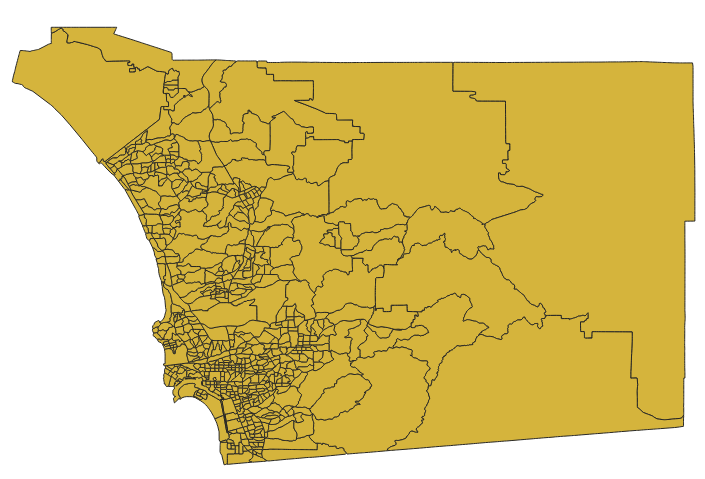
To read more about layers, click this link.
Navigating QGIS
By default, you should already have "Pan Map" selected. This is the hand icon towards the top of the screen. In this mode you can hold left click, and move around to see different parts of the map. Refer to the picture below:
In this picture, there is also a zoom in (magnifying glass with a plus) and zoom out button (magnifying glass with a minus).
You can click one of these and then left click to either zoom in or zoom out. You can also zoom in/out by scrolling your mouse, or using CMD/CTRL + and CMD/CTRL -.
Don't forget to click back on "Pan Map" in order to move the map around again.
Basemap layers, plugins, and saving your project
Now, we're going to create a basemap layer. The basemap layer will go directly under our vector data layer so that the basemap can act as a point of reference by helping us see where our data or areas are located in relation to real-world features.
There are two different ways to add a basemap in QGIS:
Using XYZ Tiles
- Scroll down on the left side of the QGIS window where the documents are.
- Look for "XYZ Tiles" and double click "OpenStreetMap."
QuickMapServices plugin
- There are many useful plugins in QGIS. If you would like to get some practice with plugins, let’s try adding one now:
- In the bar towards the top of the screen, click "Plugins" and "Manage and Install Plugins..."
- In the search bar, type and install "QuickMapServices" by NextGIS.
- Make sure the plugin pops up on the left side under "Installed" to see if it is downloaded.
- If you are using the plugin, you may need to restart QGIS.
- There are many useful plugins in QGIS. If you would like to get some practice with plugins, let’s try adding one now:
Anytime before restarting QGIS, make sure that you save the exercise. To save the project:
- Click "Project" in the top left and "save."
- Select a location and choose a file name.
- The file should save as ".qgz."
Adding a basemap with the QuickMapServices plugin
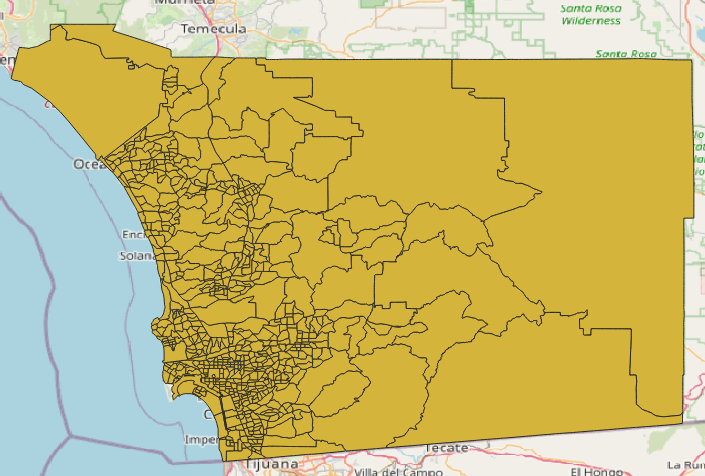
If you installed the QuickMapServices plugin, look towards the top right of the screen, hover your mouse over a few of the icons and find "QuickMapServices." It should look like this:

Click on it -> OSM -> OSM Standard.
You should now see something like this:
Coordinate Reference System (CRS)
Before working with our data further, we need to ensure that all our data are on the same CRS. As taught in the projections lesson, the CRS defines how our data location corresponds to real places on Earth. If our data don't have the same CRS, layers can appear shifted or misaligned.
In the bottom right corner, you should see something like "EPSG: 4326" which defines locations in 3D. This is the default project CRS in QGIS which is suitable because our vector data's coordinate units are in decimal degrees (latitude and longitude).
In the future or as a safety precaution in this exercise, you may need to reproject your data to match the project CRS. You can read more about reprojection in QGIS here and here.
Test your knowledge
What type of map are we using in our exercise that shows drinking water contaminants by percentile?
Didn't get the correct answer?
Question 1:
Refer back to Types of maps.
Question 2:
Refer back to Types of spatial data.